Read the original article in Japanese
English adaptation of the Japanese author's April 2026 operations report. Versions, paths and results refer to the system at the time, not to every shared server or to the site's current configuration.
Managing a WordPress site only through wp-admin becomes inconvenient when you need repeatable maintenance, article drafts, and a record of what changed. I reorganized the operation of ichigoro.com on Xserver around a local Mac mini, SSH, and WP-CLI.
The central decision was to make the Mac a controlled entry point for both article preparation and authorized server maintenance. It did not remove the need for browser inspection or backups.
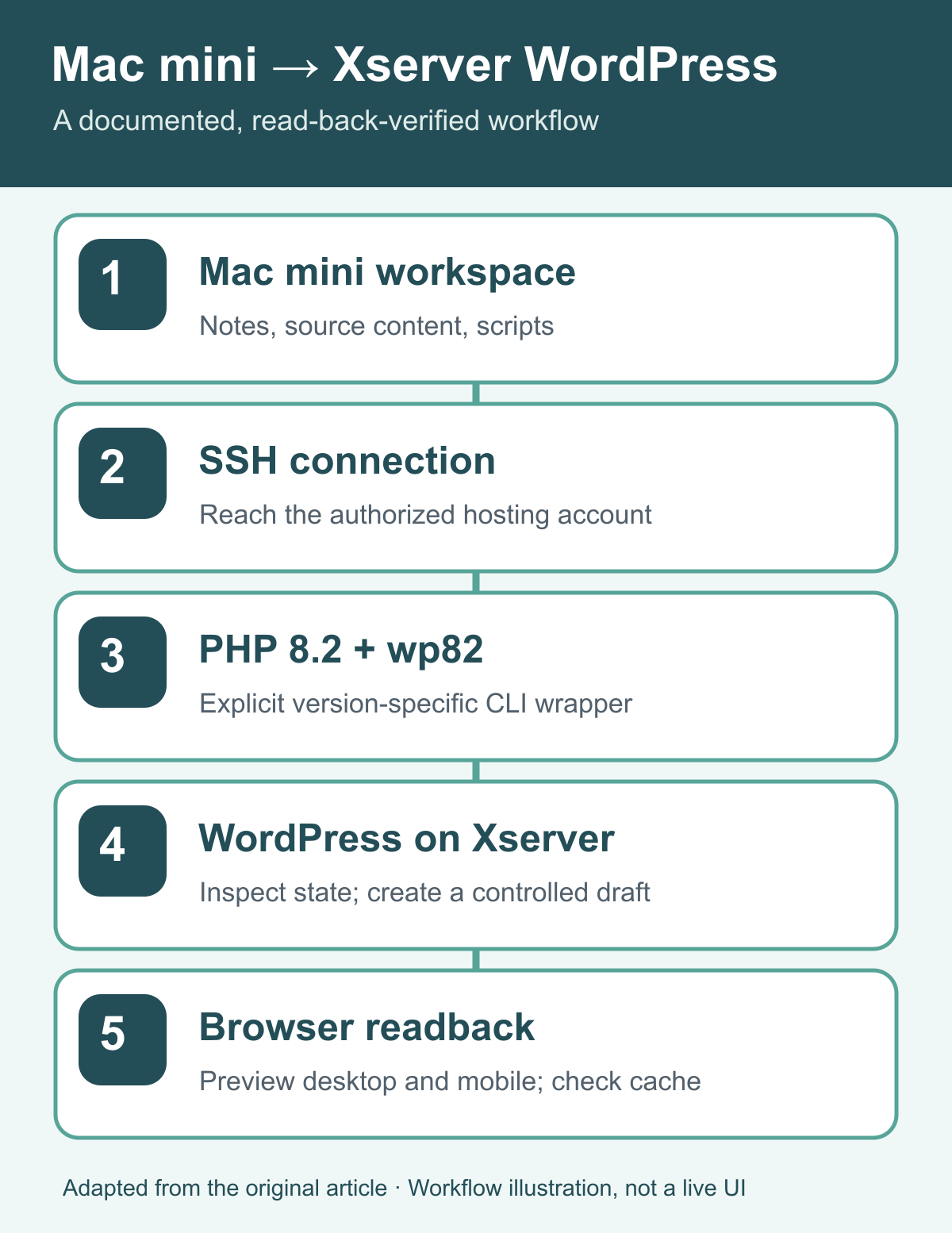
Reproduction note: YOUR_WP_CLI_WRAPPER is a placeholder for the WP-CLI executable configured on your system; it is not a literal command to copy verbatim.
What I wanted to improve
The original workflow felt too dependent on manually repeating actions in the WordPress dashboard. I wanted to make it easier to trace configuration changes, run known maintenance commands, and create drafts from local files.
The Mac mini gave me one place for notes, scripts, drafts, and operational documentation. The value was not in the device model itself—it was in making the procedure repeatable.
First, inspect the hosting environment
I checked SSH connectivity, the WordPress installation location, and the actual versions used by server-side commands.
What I found in the original environment:
- System
/usr/bin/wp: WP-CLI 2.4.0. - Default command-line PHP: 5.4.16.
- The active WordPress installation was more recent, creating compatibility concerns for maintenance.
A working public website does not imply that the hosting provider's default command-line tools are suitable for updating it. Browser PHP and shell PHP may differ.
Security and maintenance changes
The original maintenance work included:
- Disabling
display_errors. - Enabling
FORCE_SSL_ADMIN. - Enabling
DISALLOW_FILE_EDIT. - Blocking access to
xmlrpc.phpin that configuration. - Removing themes and files no longer needed for the public site.
These are historical actions on my installation, not a claim that the same configuration is appropriate for all sites. Each choice can affect legitimate functions or integrations, and should be tested and documented.
I also backed up the installation before organizing plugins and updating WordPress core from 6.7.1 to 6.7.5.
During that work, the old command-line tool produced a compatibility problem. The issue was the maintenance entry point, not proof that the live site itself was unusable.
A dedicated CLI entry point
I installed WP-CLI 2.12.0 under the account's home directory and used a wrapper called YOUR_WP_CLI_WRAPPER, configured for PHP 8.2 in the original setup.
Examples from the article:
YOUR_WP_CLI_WRAPPER core version
YOUR_WP_CLI_WRAPPER plugin list
YOUR_WP_CLI_WRAPPER post list
This made the intended PHP and WP-CLI environment explicit for the scripts I ran.
The wrapper and PHP paths were site-specific. Before running operations elsewhere, confirm WordPress location, credentials, hosting restrictions, PHP compatibility, and command permissions.
For a simple draft workflow, I also used a local helper:
~/bin/ichigoro-new-draft "Article title" /path/to/content.html
That script belonged to my configuration. It is not a stock WordPress feature. I used it to stage article content as a draft, with separate review before publication.
An unexpected problem: a blank page in Safari
After changing the PHP runtime, Safari appeared to show a blank home page. My first instinct was to suspect a server failure.
The evidence pointed elsewhere:
- The HTTP response was 200 OK.
- The server returned HTML through the end of the document.
- Chrome displayed the page.
- Safari alone showed a blank screen.
In this particular incident, clearing Safari's cache restored normal display.
The lesson is not that every Safari blank page is a cache problem. It is to investigate the HTTP status, returned HTML, and behavior in another browser before attributing the issue to a runtime upgrade.
The workflow I ended up with
- Prepare article ideas and content on the Mac mini.
- Record notes and experiments in Obsidian or local files.
- Use the established SSH route to reach Xserver.
- Inspect the WordPress state with the explicit
WP-CLI wrapperwrapper. - Create authorized draft posts with
ichigoro-new-draft. - Use
wp-adminand a browser for final visual inspection and controlled publication.
Keeping notes and changes near the scripts reduced the gap between drafting and maintenance in my personal workflow.
What this setup does—and does not—guarantee
It makes repeatable operations easier to describe and review. It does not guarantee that a command is safe simply because it runs successfully.
Shared servers may have old binaries, nonstandard PHP routing, access restrictions, or unexpected cache behavior. Every write should identify the target, preserve a rollback path, and be checked after application.
I also would not put passwords or credentials into AI prompts or blog drafts. Authentication belongs in the configured connection mechanism and protected local environment.
FAQ
Do I need a Mac mini? No. The advantage comes from using a well-managed local machine as the operational entry point.
Can I stop using wp-admin? I would not. It remains useful for final preview, layout details and human publication.
Can shared hosting support this? My environment did, with the right CLI and PHP setup. That does not establish universal compatibility across hosting plans.
Is CLI necessary for a small site? Not always. If manual editing is working and you rarely need maintenance, adding scripts can introduce unnecessary complexity.
Conclusion
The biggest improvement was treating WordPress operations as a documented workflow rather than a series of dashboard clicks. The Mac mini hosted the notes and scripts; the server was accessed through a specific SSH and WP-CLI path; the browser remained the final presentation check.
For drafting details, see the local article workflow and Codex/WP-CLI article guide.