Read the original article in Japanese
English adaptation of a WordPress workflow article updated October 3, 2026. Commands are illustrative WP-CLI examples, not results of a newly executed deployment.
When you use AI to prepare WordPress content, the first step worth automating is often saving an already-reviewed manuscript as a draft. Generating, saving, reviewing, and publishing are different actions. Keeping them separate makes changes easier to inspect and less likely to cause accidental publication.
This walkthrough assumes an environment where SSH and WP-CLI are available and you are authorized to modify the target WordPress site.
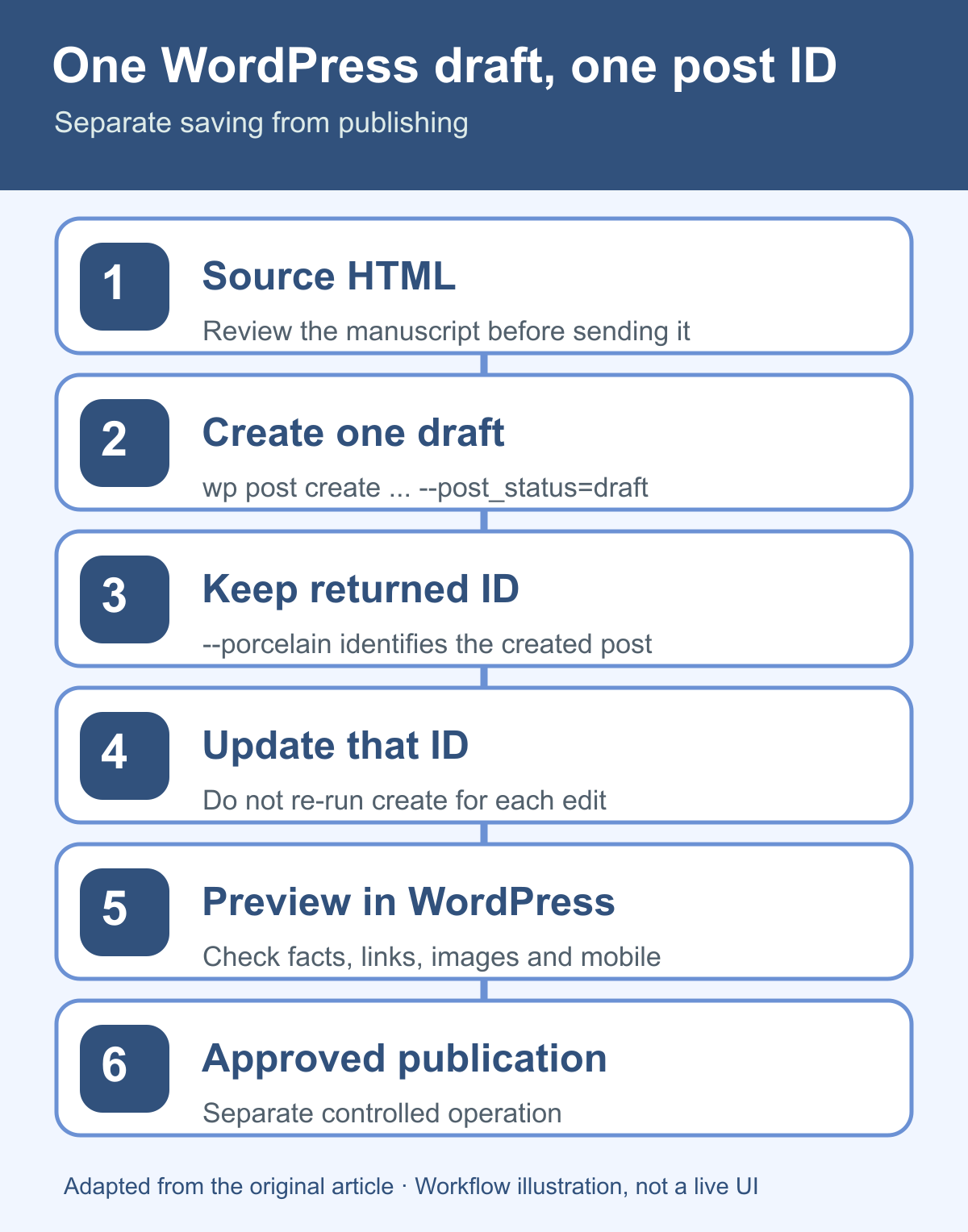
Make three decisions first
- Source: Keep the article body in a local HTML file.
- Post identity: Record the post ID returned during creation. Use that same ID for later edits.
- Release: Start with
draft, inspect the WordPress preview, and only then consider publishing.
Repeated execution should not create a new post each time.
1. Write the article body to HTML
For example, save the body as article.html:
<p>Describe the reader's problem briefly.</p>
<h2>Prerequisites</h2>
<p>Explain the required environment and exclusions.</p>
<h2>Procedure</h2>
<p>Describe the action and how to verify it.</p>
Since the WordPress theme normally displays the post title, avoid duplicating the same H1 inside the body; start major sections at H2.
Give the AI the target reader, the actual question, and verified facts. Do not ask it to invent experiences, benchmarks, or the results of commands it did not run.
Keeping HTML in a file makes it easier to review changes and keep a known-good copy. A local folder or appropriately secured private repository can serve as the working source; no specific note-taking app is required.
2. Create exactly one draft
Run WP-CLI in the WordPress environment for the intended site. The HTML file must also be readable from that environment. A file on your laptop is not automatically present on an SSH server.
An illustrative command:
wp post create article.html \
  --post_type=post \
  --post_status=draft \
  --post_title='Article title' \
  --post_name='article-slug' \
  --porcelain
The --porcelain flag returns the new post ID. Save it. A successful CLI message does not establish that the article is factually correct or visually ready.
For options and syntax, see the official WP-CLI post create reference.
3. Update the same draft instead of creating a duplicate
After editing the HTML, target the existing post ID. Here 123 is a placeholder, not the ID of a real post to modify:
wp post get 123 --fields=ID,post_title,post_status,post_name
wp post update 123 article.html --post_status=draft
These commands are draft-only examples. Applying the second command to a public post can change its status back to draft. For revisions to an existing published article, back up its actual content and metadata and update only the fields you intend to change.
If a command disconnects before its result is known, inspect WordPress for the existing post before retrying creation. Re-running post create blindly can make duplicates.
See the official WP-CLI post update reference.
4. Inspect the WordPress preview
Locally valid HTML can behave differently under a WordPress theme. Review both desktop and phone-sized layouts and check:
- Does the title accurately describe the article?
- Do the introduction and first conclusion repeat each other unnecessarily?
- Are diagrams and code snippets readable on mobile?
- Does any image URL still point to a local filesystem path?
- Are prerequisites and failure checks given before technical instructions?
- Do sources and related links open?
- Are outcomes and first-hand experiences supported by evidence?
Treat the saved draft and the release decision as separate operations.
Where the Mac mini and shared server fit
For ichigoro.com, the original workflow used a Mac mini and a configured SSH route to a WordPress installation on Xserver. A read-only check on October 3, 2026 successfully retrieved published post lists and saved content.
That proves the read path worked in that particular setup. It does not prove that every host uses the same PHP binary or WP-CLI command, or that write automation is safe without further checks. Connection settings and access permissions must be managed separately and should never be pasted into an article manuscript.
Do not build a publishing platform too early
For a small blog, one local file, one draft, and one post ID may be enough. Add media pipelines, templates, and other automation only when repetition justifies the complexity.
If the block editor is adequate and you publish rarely, skipping WP-CLI entirely may be the simpler choice.
Related guides cover the local-to-WordPress draft workflow, Mac mini and Xserver operations, and layered AI design guidance.